 Feedback Bubble
Published 3 October 2026 · By Jonathan Jones
A Practical Beta User Feedback Workflow for Indie SaaS
Turn scattered beta-user comments into useful product decisions with a lightweight workflow for collecting, reviewing, grouping and following up on feedback.

To turn beta feedback into decisions, collect comments where they happen, review each message with its page and device context, group related reports under a possible product change, then follow up if you ship it. Keep the process small: you are looking for evidence to inform your judgement, not a queue of requests you must build.
Start with feedback in context
Beta testers often send useful observations through different channels: an email about a confusing setting, a chat message about a broken button, or a call where someone mentions a missing feature. The problem is that these comments are hard to compare when they are scattered, and easy to forget once you return to building.
Give testers a short way to report something from the page they are using. Ask for a clear message, and capture enough context to help you understand where it happened. Page details can reduce follow-up questions, but they cannot explain what the person was trying to do or why it mattered. Leave room for their own words.
Use a lightweight review loop
Collect a specific observation. Let a tester choose whether they are reporting an Issue, sharing an Idea, or asking a Question. A short, plain-text form is often enough to start.
Read the message with its context. Check the page title or path and, when available, the browser, operating system and viewport details. If the report is unclear, ask a focused follow-up rather than guessing.
Keep useful input, then look for relationships. Save a message you want to revisit. If several reports point to the same underlying need, consider grouping them under one planned change.
Decide what you will do. Compare the reports with your product direction, the problem’s impact and what you can realistically build. Some feedback will lead to a change; some will inform a later decision; some will not fit the product.
Close the loop when work ships. If a tester asked for a reply and supplied an email address, let them know what changed. Keep the message honest and specific.
You can run this loop with a shared document or spreadsheet. The trade-off is manual work: you have to copy messages over, preserve their source context and remember to follow up. A dedicated feedback inbox can make those steps easier to keep together without requiring a full research or project-management process.
An illustrative example: repeated confusion in onboarding
Imagine a beta tester reports that they cannot find where to invite a teammate. A second tester asks whether invitations are available on their plan. A third says they expected to see the option on the workspace page. These are three different messages, but they may point to one question: is the invitation feature hard to find, unclear, or both?
Review each report and its page context before deciding. If the evidence supports a change, group the messages under an outcome such as “Make team invitations easier to find”. That leaves the original comments intact while giving you one piece of work to assess. You might improve the page, clarify plan wording, or decide that more investigation is needed. The reports inform the choice; they do not make it for you.
How Feedback Bubble fits into the workflow
Feedback Bubble lets a visitor submit an Issue, Idea or Question from a floating widget without leaving your website. Each submission includes the page title, path and URL, plus available browser and device details. It does not record sessions, screenshots, keystrokes or network requests, so a clear written report still matters. See the product features for the current widget and context details.
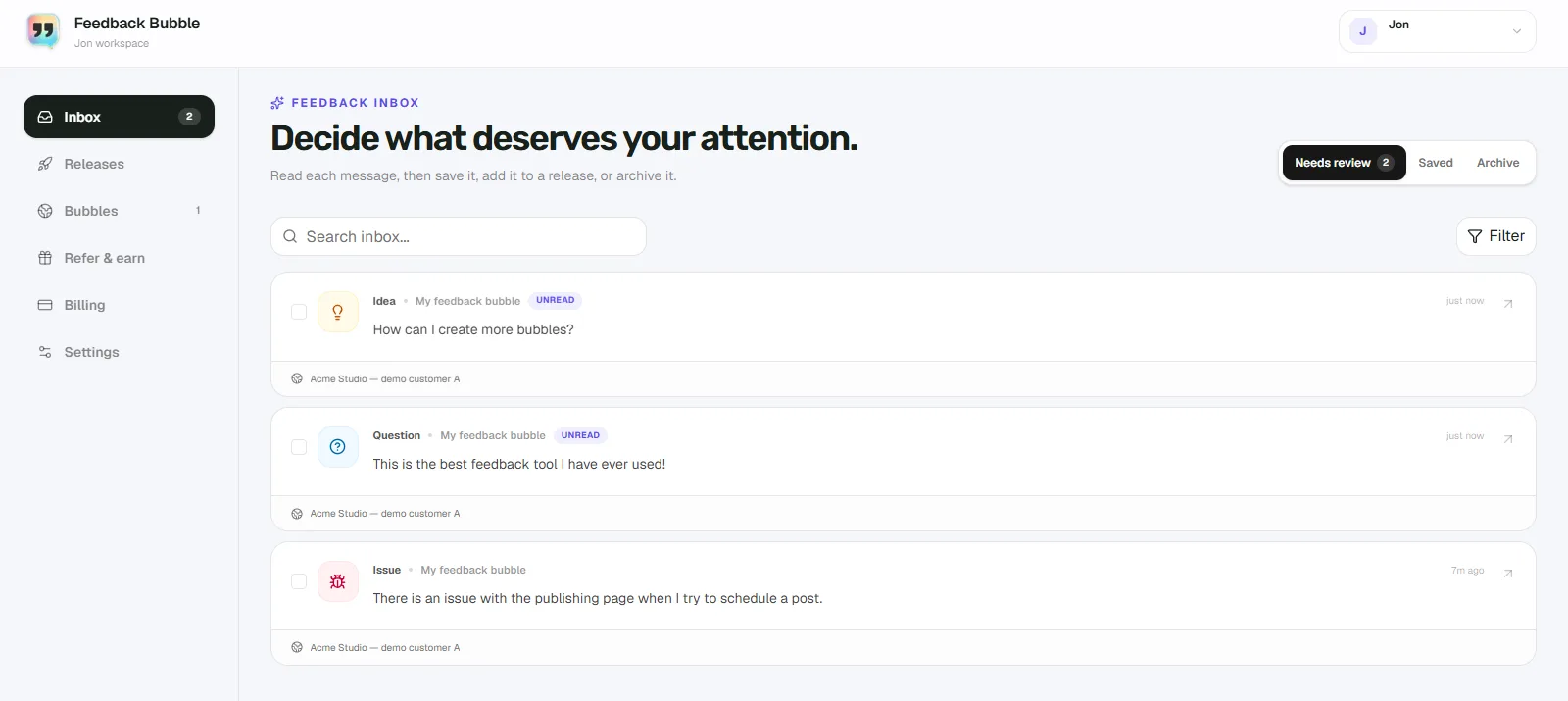
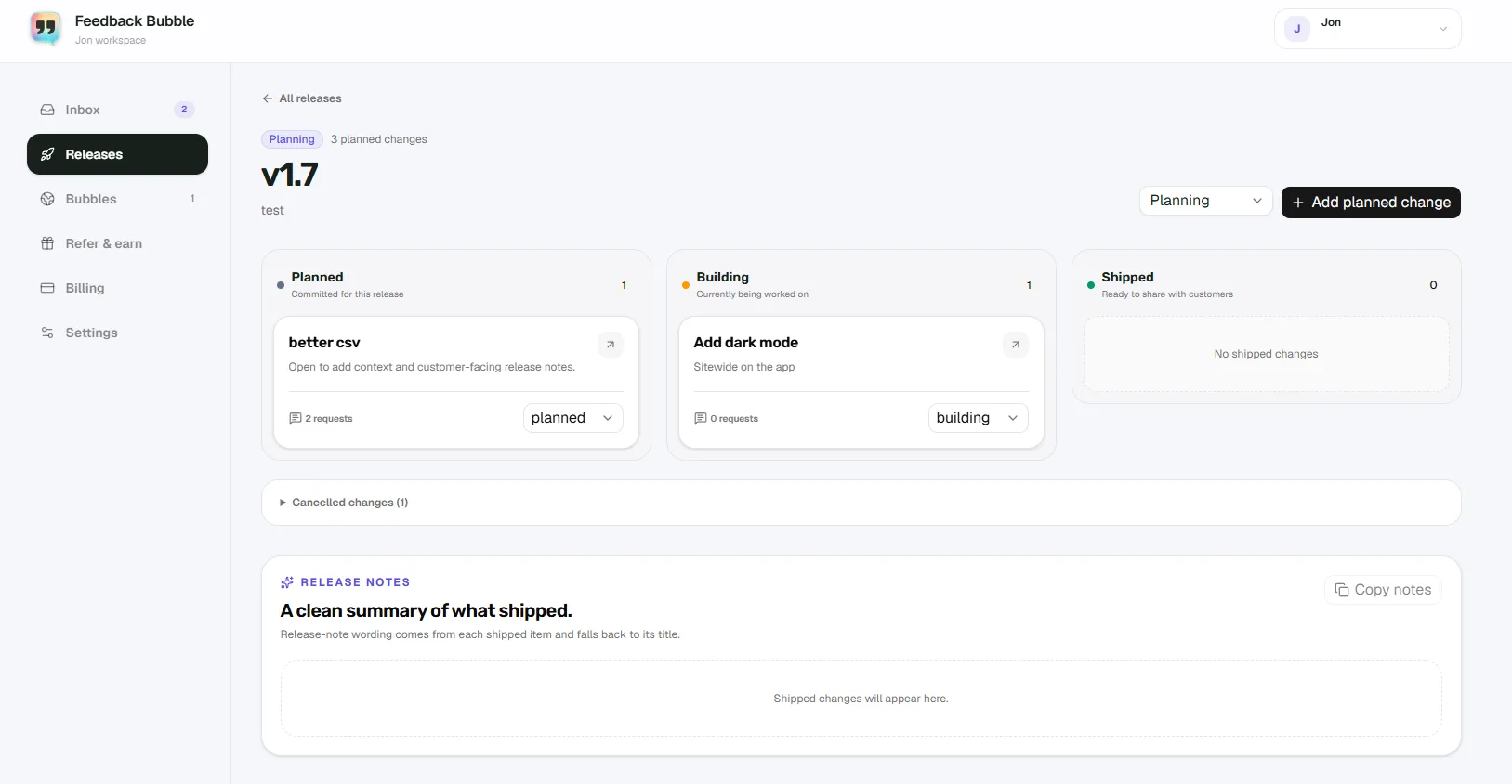
In the dashboard, review new messages under Needs review, keep useful input in Saved, or move messages that need no further attention to Archive. When related messages support a decision, use Plan change to connect them to a release and a planned change. As work progresses, that change can move through Planned, Building and Shipped. The customer’s original feedback stays separate from the work you choose to do.
If a shipped change is linked to testers who requested a reply, you can review and edit a follow-up message before sending it. That gives you a simple way to report back without treating every feedback item as a support ticket. Read more about closing the customer feedback loop.
Keep the process useful, not heavy
Do not treat each comment as a feature request. A report may reveal a bug, a wording problem, a gap in onboarding or a one-off situation.
Avoid counting messages without reading them. Several comments can point to one underlying problem, while repeated requests may still be a poor fit for your product.
Do not collect details you will not use. Page and device context can help with troubleshooting, but adding a long form can make it harder for testers to send a quick observation.
Set a review habit you can maintain. A brief, regular check of the inbox is more useful than gathering feedback with no time reserved to assess it.
The goal is a clear path from tester observation to a considered decision, with a reply when you have something useful to share. If an on-page inbox would help you keep that path together, explore Feedback Bubble’s features and see whether the workflow suits your beta.