 Feedback Bubble
Published 24 October 2026 · By Jonathan Jones
How to Collect Feedback Across Your SaaS Website and App
Collect feedback from your marketing website and web app with a separate approved bubble for each origin, then review both in one inbox.

One Inbox, Two Sites
If your SaaS has a public marketing website and a separate authenticated app, set up a feedback widget for each website origin, install each widget’s script on the matching site, and review submissions together in one inbox. For example, a visitor might report a confusing pricing page on www.example.com while a logged-in customer reports a save error in app.example.com. Page context helps you see which site and page each message came from, while separate origin approval ensures each widget only loads on its configured site.
Why keep feedback from both sites together?
Your marketing site and app reveal different parts of the customer experience. A visitor may have a question about your pricing or documentation before signing up. An existing user may find a bug in a settings page or request a feature while working in the product.
Keeping those messages in separate forms or email accounts can make it harder to spot related feedback. A shared inbox gives you one place to review both, while a bubble or website filter lets you narrow the view when you want to focus on one part of the product.
Configure each website origin separately
A website origin is based on its scheme, host and, where applicable, port. So https://www.example.com and https://app.example.com are different origins, even though they share a domain name. A path on the same host, such as example.com/app, does not by itself create a different origin.
For Feedback Bubble, create a separate bubble for each origin where you want the widget to appear. Each bubble has its own allowed website address, and origin validation means a script configured for one approved origin will not automatically work on another. Enter the full address for each site, using its actual scheme and host.
In Dashboard > Bubbles > New bubble, create a bubble for the marketing site. Give it a name that will be clear in your inbox and set its allowed website to the marketing site’s origin.
Create another bubble for the app, with the app’s origin as its allowed website. Choose suitable wording and feedback types for each audience. For example, the marketing site may need a Question option, while the app may benefit from Issue and Idea options.
Install each bubble’s generated script on its matching site. Put the marketing bubble script in the marketing site’s shared layout and the app bubble script in the app’s shared layout. Follow the relevant installation instructions for your platform.
Test both live sites separately. Confirm that the correct bubble appears on each, submit a sample from each site, and check that the inbox identifies the right bubble and page. Also confirm that the widget does not appear on an origin you have not approved.
Use page context to locate the report
A message such as “the button doesn’t work” leaves you guessing. Was it a button on the public site or in the app? Which page was open? Feedback Bubble records the page title, path, full URL and received time with a submission. When available, it also includes browser, operating system, device and viewport details. That context can help you find where the report came from and reduce basic follow-up questions, but it does not replace a clear description from the visitor.
For authenticated pages, check what information your URLs contain before installing a widget. If a URL can include personal or sensitive details, review whether that information should be present there before it is included in page context.
Review both sites from one inbox
Submissions from both bubbles appear in Dashboard > Inbox > Needs review. Search the messages, filter by Issue, Idea or Question, and select one bubble when you want to review only the marketing site or app. Keep useful messages in Saved, and move items that no longer need attention to Archive.
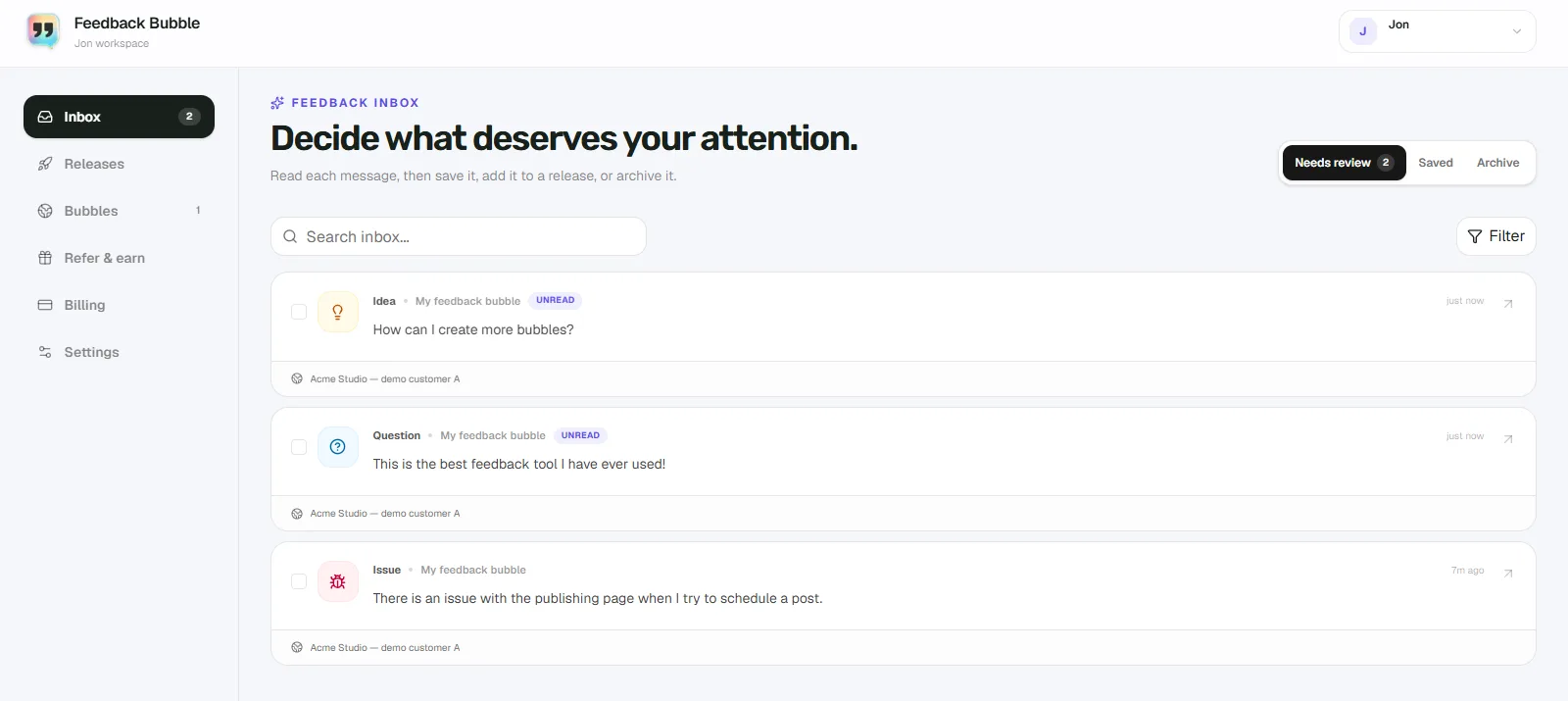
When several messages point to the same underlying need, you can connect them to one planned change. Keep the original messages intact, then decide whether the change is worth doing. Feedback is evidence for your decision, not an instruction to build every request.
Check the setup before launch
A shared inbox does not mean one script can serve every domain. Confirm that each bubble has the correct allowed origin and that the corresponding script is installed on that site. If your app and marketing site use different subdomains, test each separately. If you add a staging domain, configure and test it separately rather than assuming the production approval covers it.
Feedback Bubble currently supports up to five feedback bubbles in one account, so you can use separate bubbles for several sites and still review their submissions in one inbox. Check the current plan details before setting up additional sites.
Start by listing the exact origins for your marketing site and app, then create and test one bubble for each. That gives you a clear path from page-specific feedback to a single review workflow.