 Feedback Bubble
Published 3 August 2026 · By Jonathan Jones
How to Collect Bug Reports From Users
A practical guide for indie SaaS founders and solo developers on collecting useful bug reports from users, reducing back-and-forth, and turning reports into shipped fixes.
The most useful bug reports come from real users on your live product. This guide explains how to collect those reports in a way that gives you enough context to act on them, without burdening your users with long forms or technical questions they cannot answer.
Why bug reports from users are different from QA
Internal testing catches the bugs you already know to look for. Users find the ones you did not anticipate: edge cases triggered by specific browsers, flows you assumed nobody would follow, or combinations of settings that break something in a way your test environment never reproduced.
The problem is that most users will not go out of their way to report a bug. They will close the tab, try a workaround, or quietly stop using the feature. The ones who do report often send a short message with little context, which leads to a slow back-and-forth before you can even reproduce the problem.
For an indie founder or solo developer, that back-and-forth is expensive. You do not have a support team to gather the details. You need the report to arrive with enough information to be useful on its own.
What makes a bug report actually useful
A useful bug report tells you what happened, where it happened, and what environment the user was in. Specifically, you want to know:
The page or feature where the problem occurred.
What the user was trying to do and what they saw instead.
The browser and device they were using.
Whether the problem happened once or repeatedly.
Most users do not volunteer this information spontaneously. They describe the symptom from their own perspective, which is completely reasonable. The gap between what they describe and what you need to debug the issue is where most of the wasted time lives.
Your collection method needs to close that gap without making the user do more work than they are willing to do.
Common ways to collect bug reports and their trade-offs
Many early-stage products rely on a support email address. It is easy to set up, and some users genuinely prefer it. The downside is that email reports rarely include device or browser information, and finding the page where the bug occurred usually requires another exchange. Reports also arrive in your general inbox mixed in with everything else.
Contact forms
A contact form on a separate page adds a small barrier. Users experiencing a bug have to navigate away from the page where it happened, which means they may lose context or simply give up. Forms also tend to capture less technical detail unless you design them specifically around bug reporting.
Public issue trackers
Some developer tools link to a GitHub Issues page. This works well if your users are technical and comfortable with GitHub. For a general SaaS product aimed at non-developers, most users will not raise a GitHub issue. The ones who do are a self-selecting group, which skews your picture of the actual problem rate.
In-app feedback widgets
A floating feedback widget lets users report a bug without leaving the page where it occurred. Because the widget is already open on the affected page, you can capture the URL, page title, browser, and device automatically alongside the user's message. The user does not have to know what browser version they are running or how to describe their operating system. The submission records it.
This approach works particularly well for SaaS products where users are already logged in and working inside your application when they encounter a problem.
How to design a bug-reporting flow that users will actually use
The goal is to make reporting feel like a quick action rather than a task. A few principles help:
Keep the form short
Ask for one thing: a plain description of what happened. Do not ask users to categorise the severity, estimate the impact, or fill in a reproduction checklist. If you need that level of detail, gather it automatically from context or follow up directly.
Make it available on every page
A bug can appear anywhere. If the reporting mechanism is only on your contact page or in a settings menu, users who hit a problem in the middle of your app have to interrupt what they are doing to find it. A consistently placed widget removes that friction.
Capture technical context automatically
When a user submits a report, you ideally want to know the page URL, their browser name and version, operating system, device type, and screen size. Asking users to provide this manually produces unreliable answers. Capturing it automatically alongside their message means you start with a complete picture.
Distinguish bugs from other feedback types
Not everything that arrives through a feedback channel is a bug. Some messages are feature requests, others are questions. Letting users select a type at the point of submission means you can triage quickly. You know immediately whether something needs a fix or a reply.
Confirm the submission clearly
Users who report a bug and see nothing happen will wonder whether their message went anywhere. A clear success message reassures them and makes them more likely to report again in the future.
How Feedback Bubble fits into this workflow
Feedback Bubble is a lightweight widget designed for exactly this kind of setup. You add one script to your website, and a floating launcher appears in the bottom corner of every page. Visitors can open it without leaving the page and choose from up to three feedback types: Issue, Idea, or Question. For a bug-reporting use case, the Issue type is the relevant one, though the others are available if you want to handle all feedback in one place.
Every submission automatically includes the current page title, page path, and full URL, along with browser name and version, operating system, device type, viewport dimensions, screen resolution, and a handful of other technical details. You can see a short summary of this context in your inbox and expand it when you need more detail. This reduces the number of follow-up questions considerably, especially for issues that only reproduce on specific devices or browsers.
To get started, go to Dashboard > Bubbles > New bubble. You give the bubble a name, set the allowed website origin, choose an accent colour and position, and enable the feedback types you want to accept. You can also write a custom form heading and success message to match your product's tone.
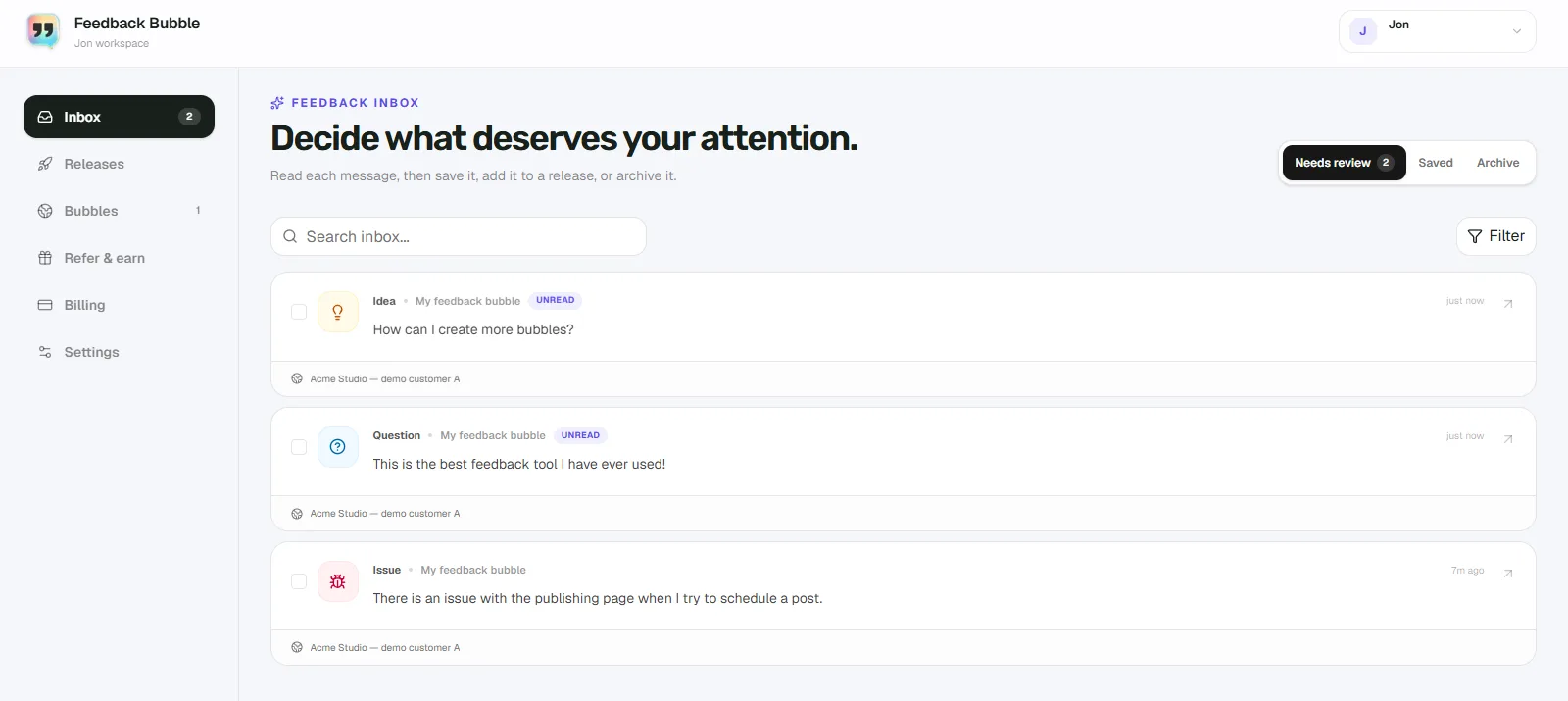
Once installed, bug reports arrive in Dashboard > Inbox > Needs review. You can filter by the Issue type to see only bug reports, search by text, and sort by date. If a user asks for a reply and leaves their email address, that information appears alongside the report so you can follow up without a separate step.
Installation takes a single script tag. For an HTML site you paste it before the closing </body> tag. For Next.js, React, and WordPress there are separate installation tabs with the right code for each setup. Once the script is in place, you can adjust the widget's colour, wording, position, and enabled feedback types from the dashboard without touching the installation again.
If several users report the same issue, you can select those related messages and connect them to a planned change under Dashboard > Releases. This keeps the original messages intact while letting you track the fix through Planned, Building, and Shipped stages. If those users requested a reply, you can send them a follow-up when the fix ships.
Common mistakes when collecting bug reports
Treating every report as urgent
A single bug report does not tell you how widespread a problem is. Before dropping everything to fix it, check whether other users have reported the same issue, and look at the device and browser context. A bug that only affects one old browser version on one operating system may not be your highest priority.
Building every requested fix immediately
Some reports that arrive as bugs are actually requests to change behaviour that works as intended. Others describe genuine problems that will take significant work to resolve properly. It is worth triaging before committing. Saving a report to review later, or archiving it if it is not actionable, is a valid decision.
Ignoring reports with thin context
If a report says the export doesn't work" with no other detail, it is tempting to discard it. Before you do, check what page it was submitted from and what device the user was on. A short message with automatic context attached can still be enough to reproduce the problem.
Not closing the loop
Users who report bugs and never hear back are less likely to report again. Even a brief reply saying the issue is fixed builds confidence that reporting is worthwhile. If you collect email addresses with bug reports, use them when the fix ships.
A simple process for handling incoming bug reports
A consistent process prevents reports from piling up unreviewed. Here is a straightforward approach that works for small teams:
Review new reports in Needs review on a regular schedule rather than reacting to every notification.
Filter by Issue to focus on bug reports. Look at the page URL and device context before reading the message.
If the report is clear and actionable, connect it to a planned change or save it for your next triage session.
If the report duplicates an existing issue you are already tracking, add it to the same planned change so you know how many users are affected.
If the report is too vague to act on and you cannot extract enough from the context, archive it rather than leaving it in the inbox indefinitely.
When a fix ships, follow up with any users who requested a reply.
This does not need to be a daily ritual. Even a weekly review keeps reports from going stale and gives users the sense that the product is actively maintained.
Wrapping up
Collecting bug reports well is mostly about removing friction. If users can report without leaving the page, without filling in a technical form, and without worrying that their message will vanish into a void, more of them will do it. That gives you a clearer picture of what is actually breaking in your product, on which devices, and for which flows.
If you want to see how the widget and inbox work in practice, you can explore the full feature set on the Feedback Bubble features page.
Frequently asked questions
Do users need an account to submit a bug report through a feedback widget?
No. Visitors can submit a report without logging in or creating an account. If you have enabled reply requests, they can optionally provide an email address, but that is not required to send the feedback.
How do I avoid flooding my inbox with low-quality reports?
A short, open-text form tends to filter itself. Users who are genuinely affected by a problem will take a moment to describe it. Spam submissions happen, but they are rare on a product used by real customers. You can archive anything that is not actionable without losing the original record.
What technical context is captured automatically with each report?
Each Feedback Bubble submission records the page title, page path, full URL, browser name and version, operating system, device type, viewport and screen dimensions, device pixel ratio, orientation, touch support, colour preference, reduced-motion preference, browser language, and whether the browser reported being online at the time.
Can I collect bug reports from several different websites in one place?
Yes. A single Feedback Bubble account supports up to five separate widgets, each tied to its own approved website. Reports from all of them arrive in the same inbox, where you can filter by website to focus on one product at a time.
Does adding a feedback widget affect how my site loads?
Feedback Bubble loads as a small external script. The widget is only added to the page after the configuration is confirmed for the approved origin. For most websites this has a minimal footprint, though if page load performance is a particular concern for your product, it is worth measuring the impact in your own setup.