 Feedback Bubble
Published 4 November 2026 · By Jonathan Jones
SaaS Feedback Widget Workflows for Issues, Ideas and Questions
A practical triage workflow for indie SaaS founders to review bug reports, feature ideas and customer questions without confusing what each needs next.

Sort SaaS Feedback
Handle bug reports, feature ideas and customer questions as separate kinds of evidence: investigate Issues, assess Ideas against a real user need, and answer Questions or use repeated ones to spot unclear product wording. Then decide whether each message needs more review, should be kept for later, or supports a planned change. That separation helps you act without treating every customer message as a promise to build.
Start with the kind of feedback
A visitor’s category is a useful first clue, not your final decision. Read the message in full and check its page context before choosing what to do. Someone may report an Issue that is really a confusing workflow, or submit an Idea that points to a problem they cannot currently solve.
Issue: investigate what went wrong
First establish where it happened, what the customer expected, and what they saw instead. Try to reproduce the problem using the details they supplied. If an important step is missing, ask one focused follow-up rather than sending a long technical questionnaire.
Idea: understand the need behind the suggestion
A suggested feature is one possible solution, not a requirement. Ask what task the person is trying to complete, whether the same need appears elsewhere, and whether it fits the direction of your product. Several related messages may support one planned change, but a repeated request still needs your judgement about value and effort.
Question: answer it, then look for a pattern
Answer a one-off question through the appropriate channel if you have a way to contact the person. If similar questions keep arriving, check whether a page, label, onboarding step or help article could explain the answer more clearly. A recurring question can reveal product friction even when nothing is broken.
Three illustrative submissions and what to do next
The examples below are fictional illustrations, not reports from Feedback Bubble customers.
Issue: “On the reports page, selecting Download leaves the spinner running and no file appears.” Check the page and available device context, then try the action yourself. If you confirm a bug, decide how it fits your current work.
Idea: “Could I export a monthly summary as a CSV for my client report?” Note the underlying need, such as reusing report data. Look for related requests and consider whether an export is the right solution.
Question: “Can I let a colleague view this report without giving them admin access?” Answer based on how your product works. If this question comes up repeatedly, review the wording around roles and sharing.
These examples show why the category should guide your first review, not dictate the outcome. The export question might prompt a help-page change, a product change or no change at all. The evidence and your product priorities determine the next step.
Use a short review workflow
Read the original message and identify the page or product area it concerns.
Choose the next action: investigate an Issue, assess an Idea, or answer a Question. Ask for clarification only when a missing detail affects that decision.
Look for related messages before committing to work. Consider who is affected, how much the problem matters, and the cost of addressing it.
Keep useful feedback in Saved when you need to revisit it, or move it to Archive when it no longer needs attention. These organise your review; they do not change what the customer wrote.
If you decide to act, describe the outcome you plan to deliver. For example, use “Add monthly report export” rather than copying a customer’s message as a specification.
Keep the original message separate from planned work
Feedback Bubble lets visitors choose Issue, Idea or Question, then send a plain-text message without leaving your website. In Dashboard > Inbox > Needs review, you can search messages and filter by type or bubble. Each submission includes the page title, path and URL, plus available browser, device and viewport details. Context can reduce basic follow-up questions, but it cannot tell you what the visitor clicked or replace a clear description.
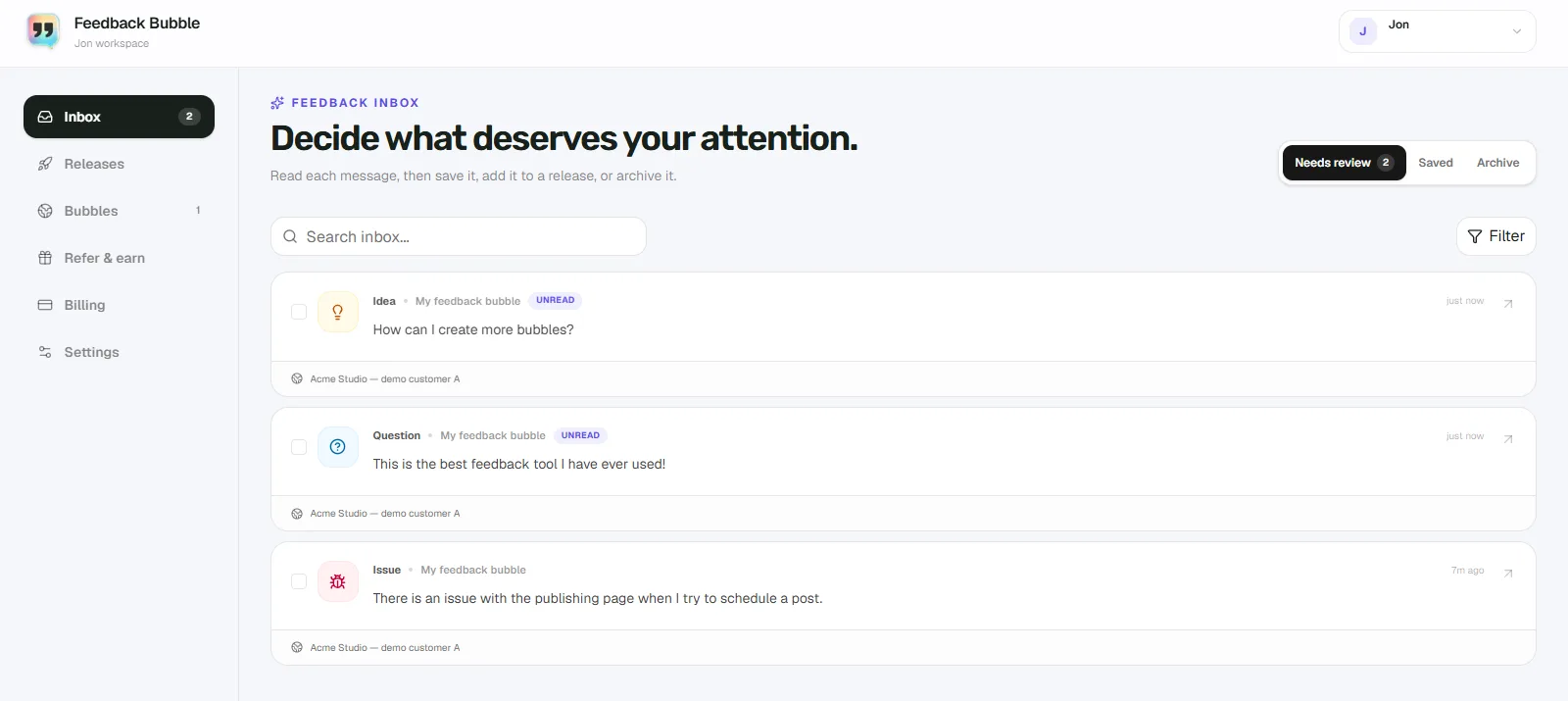
New messages appear in Needs review. Move useful but undecided feedback to Saved, or move messages that no longer need attention to Archive. If several messages support one product decision, select them and choose Plan change from Needs review or Saved. The messages keep their original wording while the planned change records the outcome you chose.
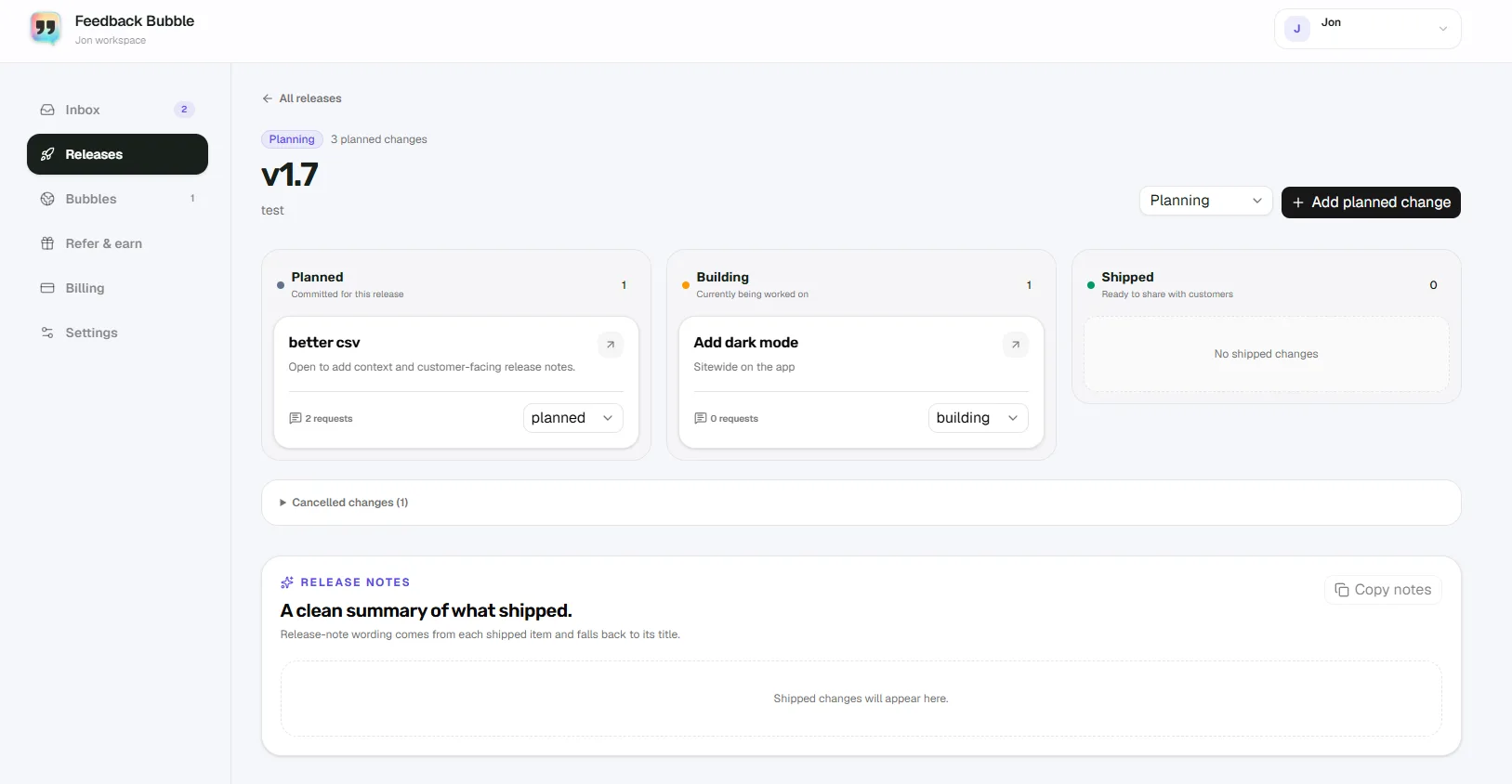
You can place planned changes in a release and track them as Planned, Building or Shipped. A release workflow records the work you chose to do; it does not mean every customer request should be built. Feedback Bubble’s feature overview explains the widget and feedback workflow.
Keep the process proportionate
A small SaaS does not need a committee or scoring model for every message. A regular short review is often enough to spot repeats, investigate blockers and keep good ideas from disappearing in email. If a message is unclear, preserve the uncertainty rather than guessing what the customer meant.
A focused feedback widget can make this workflow easier when comments currently arrive across scattered channels. To see how the website setup works, visit the Feedback Bubble features page.