 Feedback Bubble
Published 26 October 2026 · By Jonathan Jones
How to Review SaaS Feedback Without Creating a Daily Support Burden
A lightweight feedback review workflow for indie SaaS founders: batch new messages, decide what to save or archive, and connect useful reports to planned product changes without treating feedback as live support.
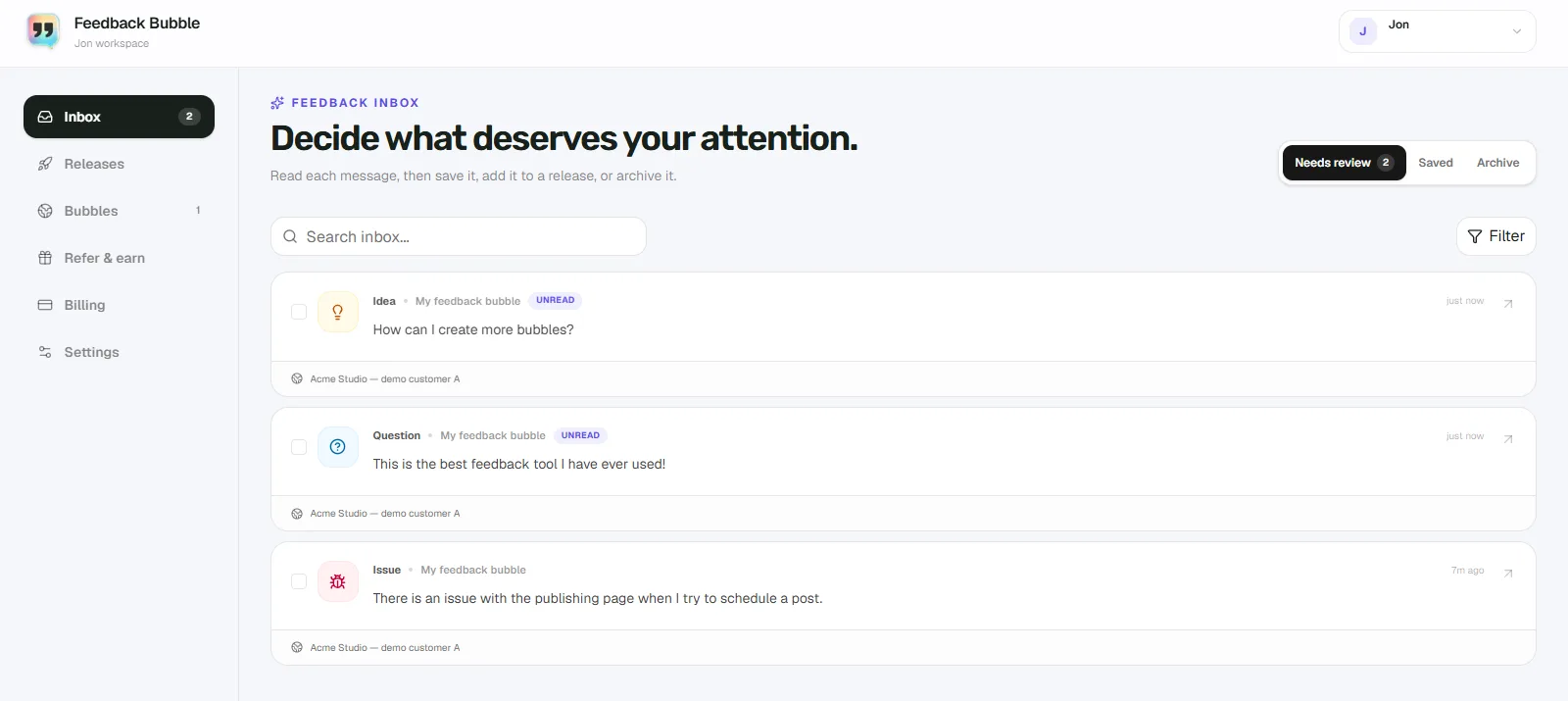
You can keep customer feedback from becoming another daily support queue by reviewing it in a short, scheduled batch. Start in Needs review, use filters to focus on the messages that need attention, move useful but undecided feedback to Saved, and put items that no longer need attention in Archive. Plan a product change only when the evidence and your priorities justify it. This organises feedback; it does not automatically prioritise messages or reply to customers.
Set a review window, not an always-on queue
For a solo founder, a weekly review is a useful starting point. Put a short slot in your calendar and use it to read new feedback, make a decision, and note anything worth revisiting. If your product gets enough submissions that messages sit too long, review more often. The aim is to choose a rhythm you can maintain, not to check the inbox whenever a notification arrives.
Email notifications can tell you that new feedback has arrived, but they do not have to set your work schedule. If the alerts interrupt focused work, turn them off in Dashboard > Settings and keep your review slot. Feedback remains in the inbox if a notification email cannot be delivered.
Make one quick pass through Needs review
Start with Needs review and narrow the list if it helps. Search by a word or phrase, filter by Issue, Idea, or Question, or show feedback from one bubble if you manage more than one website. Sort by newest or oldest, then open each message to read it and mark it as viewed. The page title or path can help you understand where the person was when they sent it; available browser and device details can help when you are investigating a report. Context reduces some follow-up questions, but it does not replace a clear account of what happened.
Give each message one next step
Plan a change when you have decided to act. Keep the customer message intact and record your intended outcome separately.
Save feedback that is useful but not ready for a decision. You can return to it during a later review without leaving it in the active queue.
Archive feedback that no longer needs attention, such as an item you have reviewed and decided not to pursue. Archiving changes its place in your workflow, not the customer's original wording.
Follow up only when it is useful and possible. An ordinary submission does not require an email address; if a visitor requests a reply and provides one, you can use it to contact them.
This keeps Needs review focused on decisions still to make. For more on separating useful evidence from requests you do not plan to build, see how to prioritise customer feedback.
Example: from issue report to planned change
The following is a hypothetical example, not a customer story. Suppose two users report that exporting an invoice from its preview page returns them to the invoice list without downloading a file. Their identifying details are omitted because this scenario is fictional.
In Needs review, filter for Issue and inspect both messages. Check the page path and available device context, then try the reported action yourself. If the reports appear to describe the same problem, keep both messages as evidence rather than treating them as two separate feature requests.
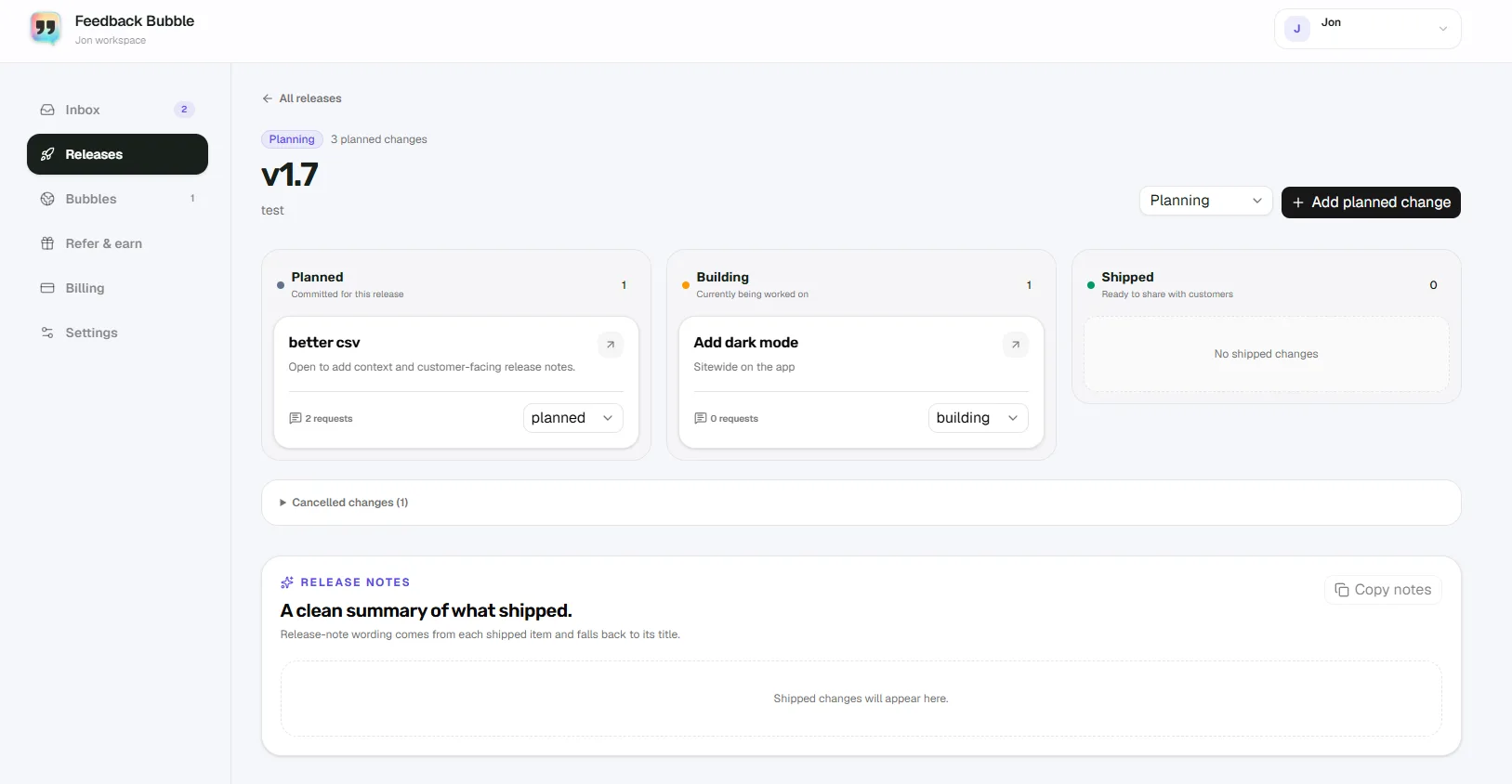
Decide whether the problem affects a core task and fits the work you can take on. If it does, select the related messages and choose Plan change. Give the work an outcome-focused name, such as “Fix PDF download from invoice preview”, and add it to a release.
Track the planned change as Planned, then Building when work starts, and Shipped when the fix is available. Those labels describe product work, not a status promised to the people who sent the feedback.
One or two reports can justify an investigation, but they do not automatically make a fix the next priority. Consider how serious the problem is, whether you can reproduce it, how many people may be affected, and what else you are committed to. If the report is too vague to investigate, save it if you expect to revisit it, or ask a specific follow-up when the visitor requested a reply and left an address.
Where a feedback widget fits
Feedback Bubble gives visitors a way to send an Issue, Idea, or Question without leaving your website. Submissions arrive in one inbox with page context, and the inbox views help you sort messages into Needs review, Saved, and Archive. You can connect related messages to one planned product change, while keeping the original feedback separate from the decision you make.
It is a feedback workflow, not a help desk or a real-time support channel. It does not choose what to build or automatically reply to visitors. If you need to promise urgent support, keep a separate, clearly monitored route for those requests. For feedback that can wait for your review slot, the widget can make it easier to collect the report where the problem happened.
If submission volume is part of your decision, the live pricing page currently lists up to five feedback bubbles, 10,000 submissions per month, and 12 months of feedback history. Check the current plan details before relying on those limits.
A small routine is enough to start
Choose a regular time, review the messages that need a decision, and give each one a next step: plan work, save it for later, or archive it. Keep your own judgement in the process. If you want to collect feedback directly on your SaaS website, see how Feedback Bubble works.