 Feedback Bubble
Published 1 October 2026 · By Jonathan Jones
How to Stop SaaS Customer Feedback Getting Lost in Email
A practical intake workflow for indie SaaS founders who want to stop bug reports, feature ideas and customer questions disappearing across email and scattered messages.
%22%2F%3E%0A%20%20%3Cellipse%20cx%3D%22780%22%20cy%3D%22190%22%20rx%3D%22610%22%20ry%3D%22205%22%20transform%3D%22rotate(-12%20780%20190)%22%20fill%3D%22%23ebd8ae%22%20fill-opacity%3D%220.58%22%20filter%3D%22url(%23softer)%22%2F%3E%0A%20%20%3Cellipse%20cx%3D%22300%22%20cy%3D%22535%22%20rx%3D%22560%22%20ry%3D%22185%22%20transform%3D%22rotate(-10%20300%20535)%22%20fill%3D%22%23faf1f0%22%20fill-opacity%3D%220.56%22%20filter%3D%22url(%23softer)%22%2F%3E%0A%20%20%3Cellipse%20cx%3D%221110%22%20cy%3D%22565%22%20rx%3D%22430%22%20ry%3D%22215%22%20transform%3D%22rotate(-18%201110%20565)%22%20fill%3D%22%23f0bde2%22%20fill-opacity%3D%220.34%22%20filter%3D%22url(%23soft)%22%2F%3E%0A%3C%2Fsvg%3E)
Keep Feedback in One Place
Give customers one quick way to share feedback where they encounter a problem, then review new messages in one inbox. Add page context, set aside items worth revisiting, and connect selected reports to planned product work. This creates a clear route for new feedback; it does not import or combine messages already sitting in personal email accounts.
Why feedback disappears
When you build and support a SaaS product yourself, useful messages can arrive through a personal inbox, contact form, support address, social messages or a quick conversation. Each channel seems manageable until you need to find one report again, remember which idea several customers mentioned, or reply to someone after shipping a fix.
The problem is often the lack of a routine rather than the number of messages. If every message needs a different search, label or spreadsheet row, small tasks such as reviewing a bug report or noting a feature request are easy to postpone.
Set up a simple feedback intake workflow
1. Give visitors a short on-page route
A feedback option on the page makes it easier for someone to report what happened while they are still looking at the relevant screen. Keep the form focused: ask for a message and let visitors choose a useful category, such as an issue, an idea or a question. If you want to follow up, make an email address optional where possible.
The aim is to lower the effort of sending a useful message, not to turn the form into a lengthy bug template. If you need more detail, ask a clear follow-up question after reviewing the report.

2. Review new messages in one place
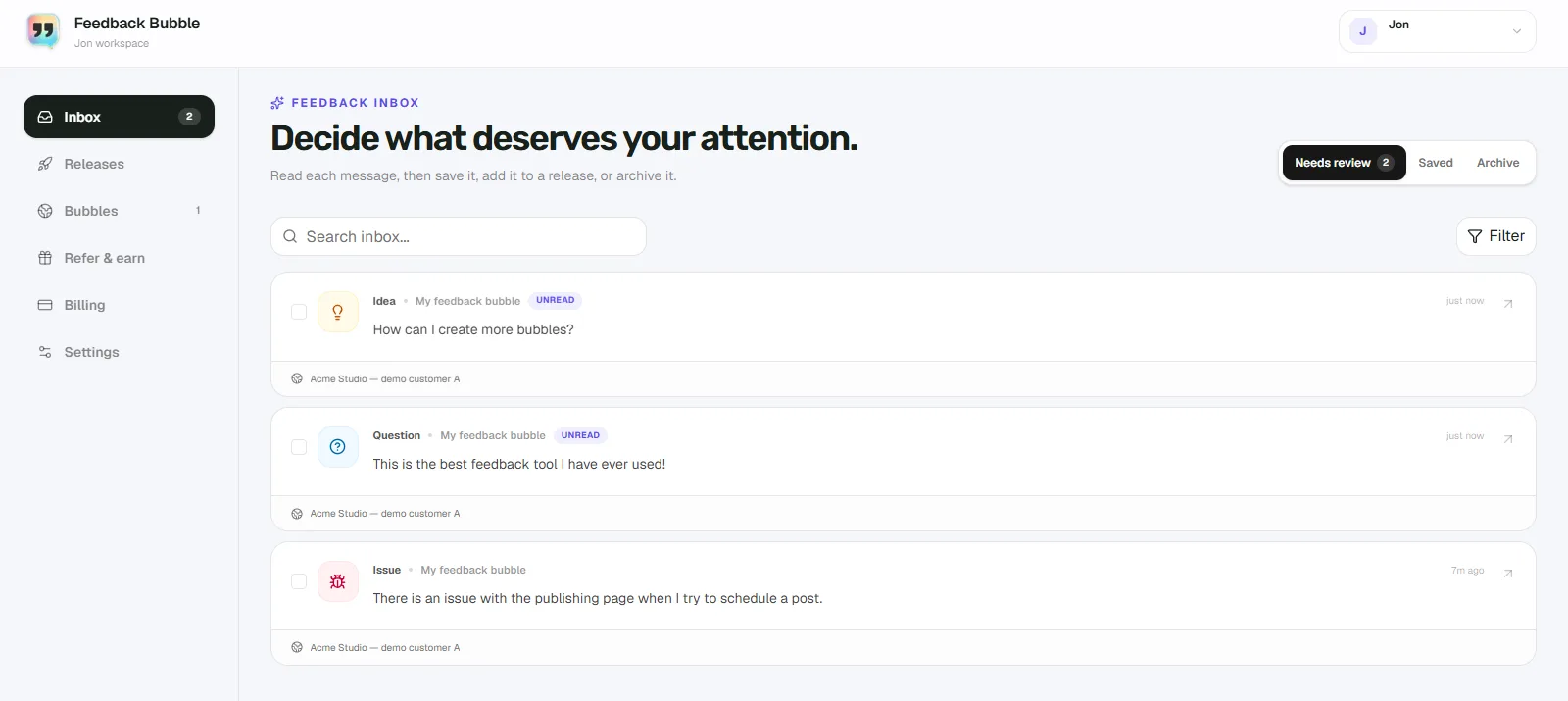
Choose a regular time to check new feedback, even if it is only a short review a few times a week. For each message, decide whether it needs a reply, deserves a closer look, can be saved for later, or no longer needs attention. A consistent review habit is more useful than collecting messages in a new tool and leaving them unread there.
If you have existing reports in email, keep that history where it is while you establish the new routine. Review open threads separately and decide which still need action. A website feedback widget should not be assumed to pull those old messages into its inbox.
3. Use page context to understand the report
A short message such as “the save button doesn’t work” can mean different things on different screens. Page title, path and URL help you see where the visitor was when they sent it. Browser and device details, when available, can help you spot whether a problem may be tied to a particular setup.
Context can reduce basic follow-up questions, but it cannot explain the customer’s intent or replace a clear description. Feedback tools also differ in what they collect, so be specific about what context you need and avoid asking for information you will not use.
4. Separate useful feedback from planned work
A customer’s message is evidence to consider, not an automatic instruction to build a feature. Save a useful idea if you want to revisit it without committing to it. Archive messages that need no further attention. When several reports point to the same problem, group them under one planned change while keeping each original message available for context.
A hypothetical report, from inbox to release
Here is an illustrative example, not a real customer report: “When I change a scheduled post’s time and save, the calendar still shows the old time until I reload.” Its page context might show the publishing calendar and the path “/calendar/queue”. That gives the developer a useful place to start, while the written message explains what the visitor noticed.
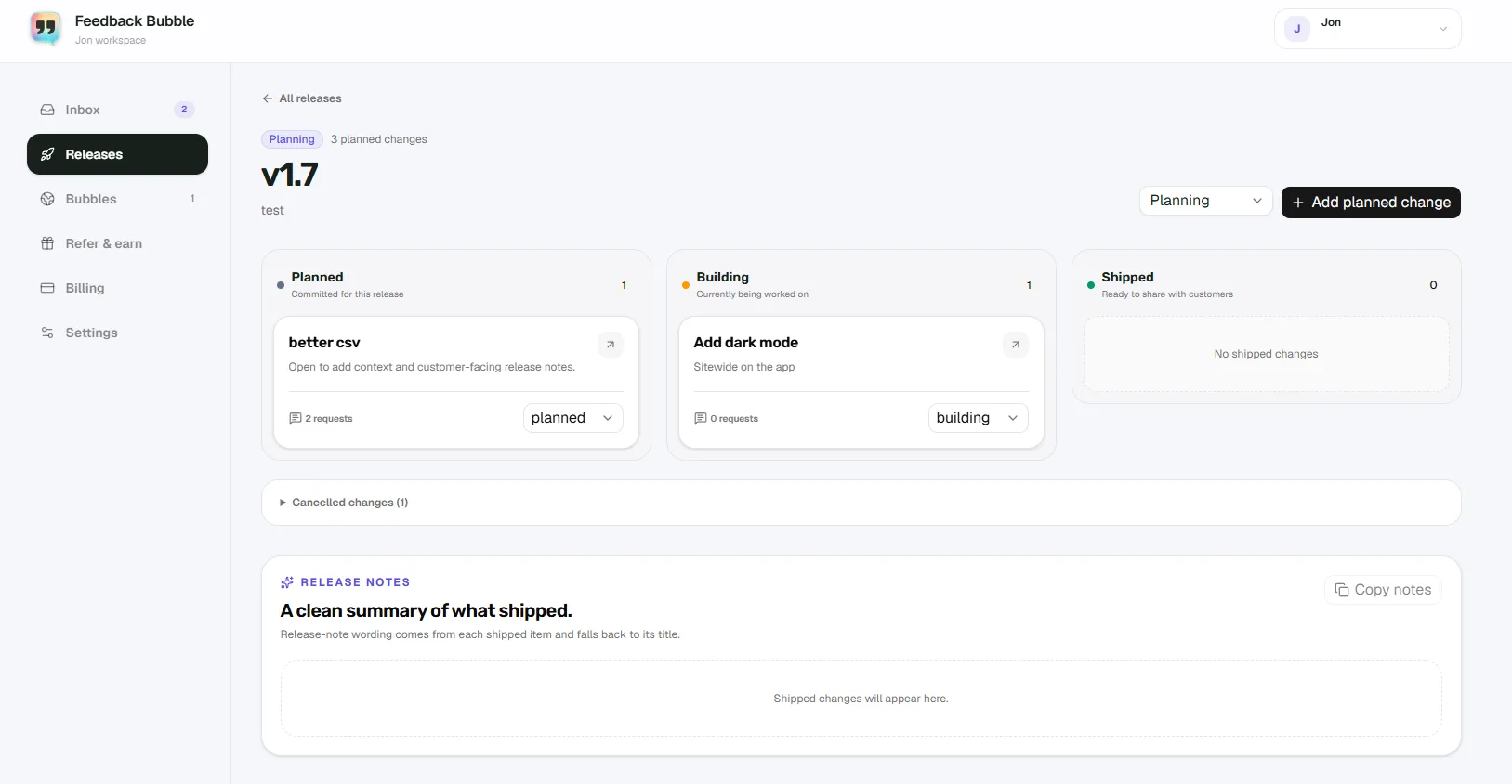
The report first lands in Needs review. After checking whether it is reproducible and relevant to other users, you could save it while investigating. If related reports point to the same issue, connect them to one planned change, for example “Refresh scheduled times after editing”. The change can move through Planned, Building and Shipped as the work progresses. If investigation shows it is a one-off or the fix is not worth the cost, you can decide not to build it.
How Feedback Bubble fits this workflow
Feedback Bubble gives a website a floating widget for Issues, Ideas and Questions. Visitors can send a message without leaving the page, and the inbox includes page details and available device context. In the dashboard, you can review messages under Needs review, keep useful items in Saved, or move them to Archive. Related feedback can be connected to a planned change and followed through to Shipped.
It is a focused option for collecting new website feedback, not a help desk or an email-import tool. It also does not record visitor sessions or capture screenshots. The current product overview describes the widget and combined inbox; the installation guide explains how to add it to a site. Once installed, ordinary changes to wording and appearance use the existing site key, so you do not normally need to paste the script again.
Keep the process small enough to maintain
A new inbox only helps if you check it and make decisions. Pick a review schedule you can sustain, keep the feedback form short, and decide what qualifies for follow-up or product planning. If customers still send messages elsewhere, tell them which route you check most reliably and review the remaining channels on a set schedule until the switch is practical.
Start by choosing one page where feedback is especially useful, such as onboarding, billing or a core workflow. Add a clear feedback route there, then set a recurring time to review what comes in. That is enough to begin replacing scattered new messages with a routine you can actually follow.