 Feedback Bubble
Published 7 October 2026 · By Jonathan Jones
Feedback Widget Not Showing? Troubleshooting Checklist
If your website feedback widget is not appearing, check the script placement, bubble status, subscription status and approved website address. This practical checklist also covers platform-specific installation and what to inspect next.
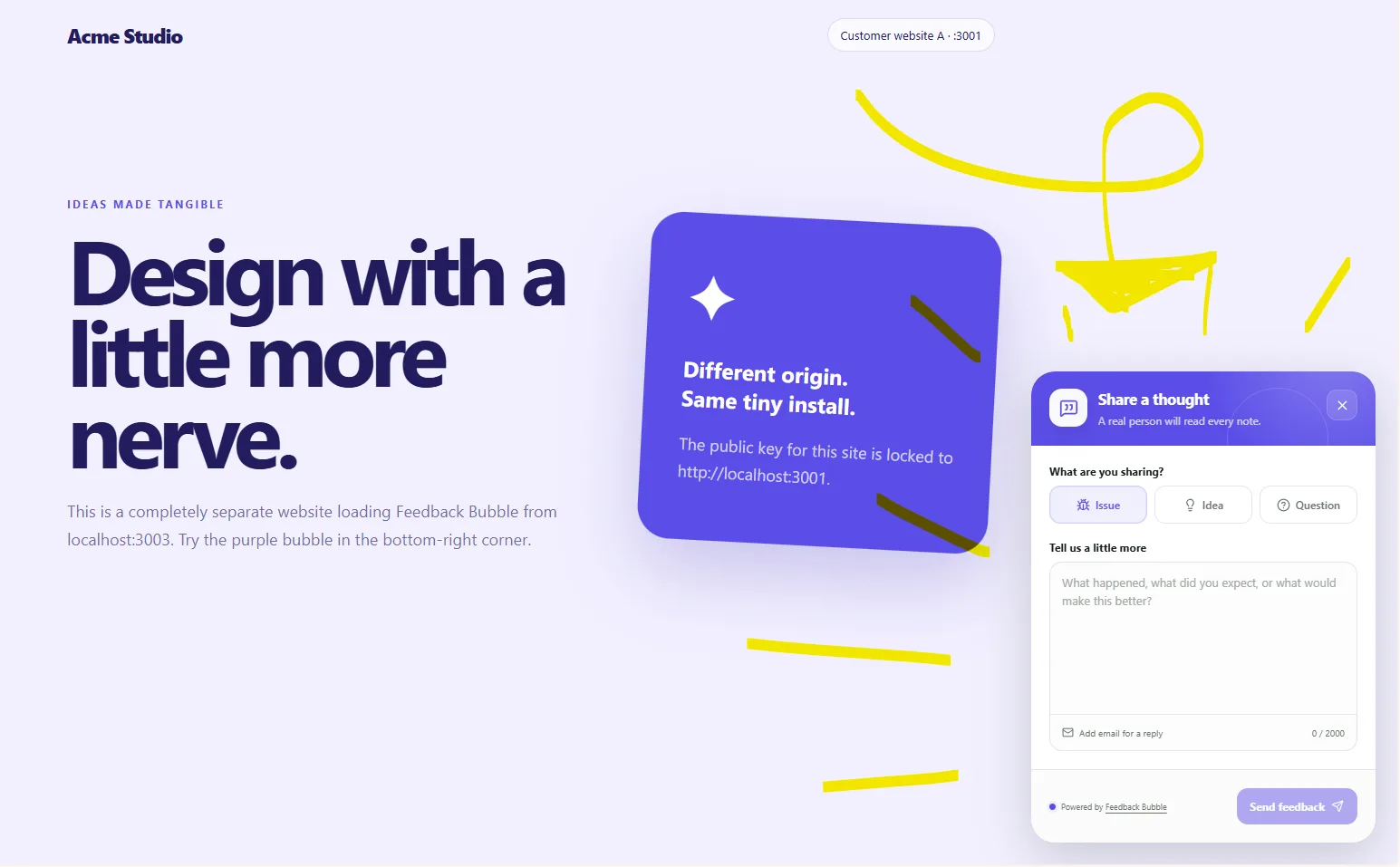
If your feedback widget is missing, check four things first: the installation script is in the right place for your platform, the bubble is active, your subscription is active, and the live website’s origin matches the bubble’s allowed website. A mismatch in any of these can stop a Feedback Bubble widget from loading.
1. Confirm the script is installed in the right place
Check that you copied the code for the correct bubble and added it to the shared layout used by the pages where the widget should appear. A script added to one page template may not load on pages using a different template.
HTML: add the generated script immediately before the closing </body> tag in the shared HTML template.
React with Vite or Create React App: add it before </body> in the root index.html.
Next.js: use the generated Script component inside <body> in the root app/layout.tsx, after the page content.
WordPress: add it to your theme’s footer-scripts area or use a trusted code-injection plugin.
Make sure the site key belongs to the bubble you intend to show. Feedback Bubble’s installation guide shows the current code and platform instructions. If you have just added the script, test on the actual page template where visitors should see the widget.
2. Check the bubble and subscription status
In Dashboard > Bubbles, find the bubble for this website. If it is paused, select Activate bubble. You can also open Customise and check the Active/Inactive switch in the editor.
Then check Dashboard > Billing to confirm the subscription is active. If paid access has ended, the website bubbles stop loading as active widgets. The FAQ explains what happens when a subscription ends.
3. Compare the live website with the allowed website
The allowed website is a security check, not just a label. Feedback Bubble rejects widget requests from an unapproved origin. Compare the address visitors use with the allowed website shown in the bubble settings. Check the protocol and hostname as well as any subdomain: for example, https://www.example.com and https://app.example.com are different origins.
This can catch you out when the site has moved from a staging address, when you switch between www and non-www, or when the production domain differs from the one used during setup. Update the allowed website to the correct address if needed, then reload the live page and check again.
4. If it still does not appear, inspect the page
If the script, statuses and website address all look right, use your browser’s developer tools to check whether the widget script is requested and whether the console reports an error. Also check that your site’s content security policy, script optimisation settings, or other code changes are not preventing the script from loading. These are general checks, not a diagnosis: the cause can depend on your site, browser and hosting setup.
If you recently changed the widget’s colour, wording, icon, position or feedback types, you normally do not need to paste the installation script again. Those settings are loaded through the existing site key. Save the changes, then refresh the page.
A quick order for checking
Start with the installation location, then check that the bubble and subscription are active. Next compare the live origin with the approved website. If those checks pass, inspect the browser console and your site’s script restrictions. This order helps you rule out the straightforward setup issues before investigating code or browser-specific causes.
If you are setting up the widget for the first time, use the installation instructions to check the platform-specific placement and test the approved website.