 Feedback Bubble
Published 23 October 2026 · By Jonathan Jones
When to Follow Up on SaaS User Feedback
Learn when to reply to SaaS feedback, how optional email requests keep submissions easy, and how to contact customers when related work ships.

Follow Up Thoughtfully
Follow up when a visitor asks for a reply and gives you an email address. For other submissions, investigate using the page and device context first. If you later ship related work, contact only the people who requested a reply and shared an address. This keeps feedback easy to send without promising a personal response to every visitor.
A practical rule for deciding when to reply
Treat a reply request as permission to contact someone, not as an obligation to build what they asked for. When a visitor shares an email and asks for a response, follow up if you need clarification or when a relevant fix or improvement ships. Keep the message specific to what they reported.
If they do not request a reply, you can still review and act on their feedback. You just do not have an address for a personal follow-up. Use the information they submitted to investigate, and avoid asking every visitor for contact details when many reports can be understood without them.
Use context before asking more questions
A visitor may report that a button does not work without including their browser or the page they were on. If your feedback process captures that context, check it before sending a follow-up. The page path, browser, operating system, device type and viewport can help you narrow down where to reproduce the issue.
Context helps reduce avoidable questions, but it does not explain everything. It cannot tell you precisely what the visitor expected or which steps they took. If you still need that information, ask one clear question, and contact them only if they chose to provide an address for a reply. Page and device details are clues, not a substitute for the person’s account of what happened.
A simple follow-up workflow
Read the message and check its context. Start with the page, time received and available device details. Try to reproduce an issue before asking the visitor to repeat information you already have.
Decide whether you need a conversation. If the report is clear enough to investigate, do that first. If a detail is missing, use the reply address only when the visitor requested a response and supplied one.
Connect related messages to planned work when you decide to act. Several reports may point to one underlying problem, but they are evidence for your decision, not a requirement to build every request.
Follow up when the relevant change ships. Say what changed and how it relates to their feedback. Keep it brief, and do not imply the change solves more than it does.
Example: from a report to a shipped fix
The example below is hypothetical. A customer of an invoicing SaaS submits an Issue: after editing an invoice on a phone, the Save button appears to do nothing. They request a reply and provide an email address.
The founder checks the report’s page and device context, then reproduces the problem on a narrow mobile viewport. A second report describes a similar failure. Instead of treating the two messages as separate feature requests, the founder connects them to one planned change: make the save action clearer on small screens. The original customer wording remains available as evidence.
When the change ships, the founder reviews a short email explaining that the invoice save action has been updated for mobile, then sends it to the customers who requested a reply. If the first visitor had not provided an address, the report could still have helped identify the problem, but there would be no way to send that person a direct email.
How Feedback Bubble handles reply requests and shipped work
In Feedback Bubble, you can turn on **Allow reply requests** in the bubble editor. When it is enabled, a visitor can choose to request a reply and enter an email address. An address is not required for an ordinary submission. Feedback arrives in the inbox with page details and, when available, browser and device context.
When you decide to act, select related messages from **Needs review** or **Saved**, choose **Plan change**, and connect them to a release. The change can move through **Planned**, **Building**, and **Shipped**. This keeps the customer messages linked to the work without replacing them with a summary of your own.
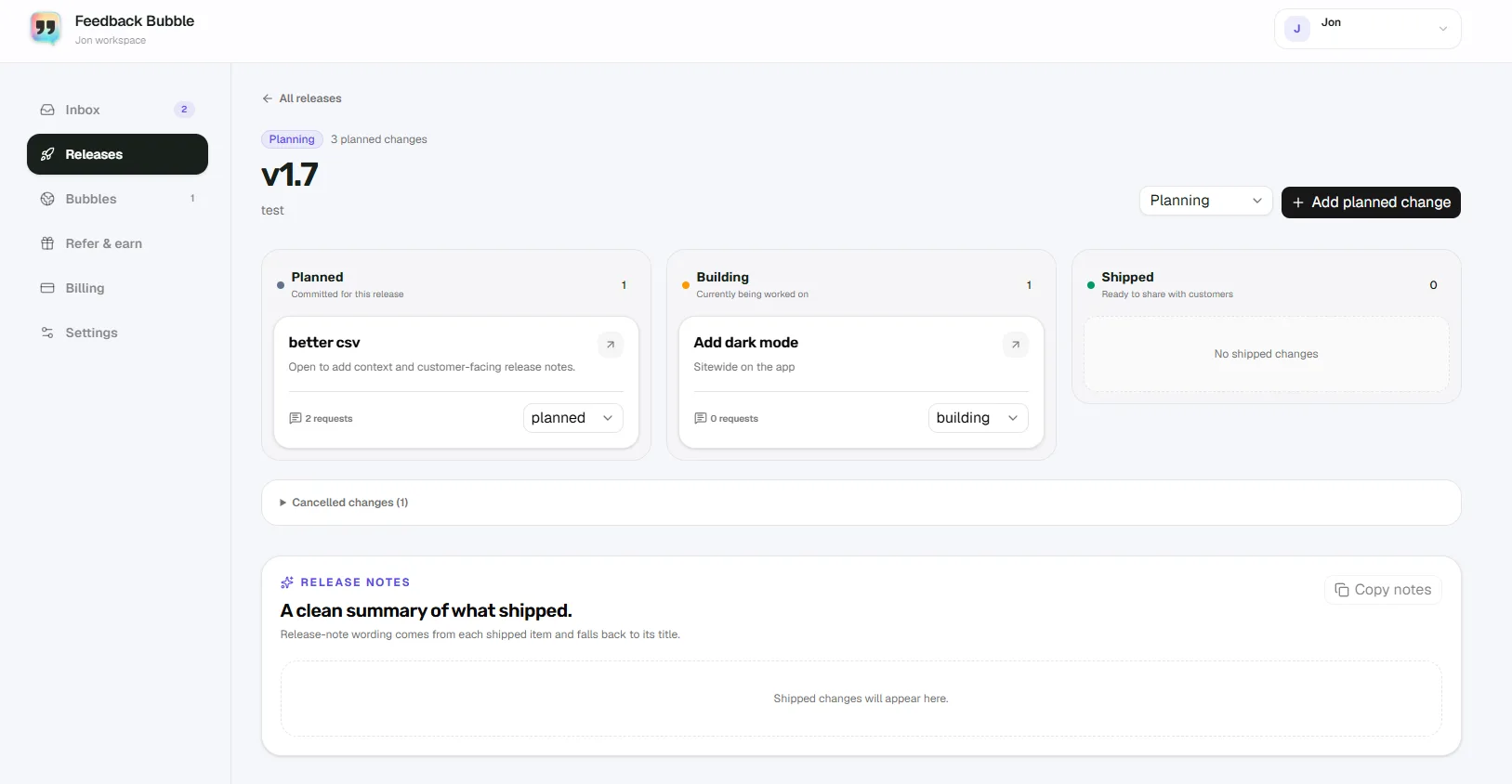
After a change is marked **Shipped**, you can open **Close the loop** and review the email subject and message before sending. The workflow is not an automatic reply: you approve the batch yourself. It includes the relevant people who requested a reply and supplied an address, deduplicates recipient addresses, and avoids sending the same shipped announcement to someone again.
For more on the full process, read how to close the customer feedback loop.
Keep the promise small and clear
Do not suggest that every submission will receive a personal response if your process cannot support that. Make the reply option clearly optional, and contact people when there is a useful reason: you need a detail to investigate, or a related improvement has shipped. If you decide not to build a request, do not imply otherwise in a follow-up.
Set reply requests to optional, review the context on new reports, and connect useful feedback to work when you choose to act. That gives you a practical way to follow up without making an email address the price of sending feedback.