 Feedback Bubble
Published 28 September 2026 · By Jonathan Jones
How to Capture Useful SaaS Feedback Without a Long Form
Make it easy for users to report an issue, suggest an idea or ask a question from the page they are already using. Then use page context and a simple review workflow to decide what deserves attention.

To get useful SaaS feedback without a long survey, let people send an issue, idea or question from the page where it came up. Capture the page and available device context, then review the message before deciding whether to save it, archive it or connect it to planned work. A short, well-timed prompt is easier to answer than a form that asks users to reconstruct the whole experience.
Ask at the point where something happened
A user who finds a confusing setting or hits an error can often explain it while the details are fresh. If they have to leave the product, find your email address and describe the page from memory, some useful context may get lost. A feedback option that stays on the page gives them a direct route to report what they noticed.
Keep the first interaction simple. Let the visitor choose a category, write a message and submit it. Use categories that help you sort the inbox, such as Issue for something broken or confusing, Idea for a suggestion, and Question when someone needs clarification. Avoid making a visitor complete fields that you can fill from the page or work out later.
For more ways to collect feedback from a product website, see our guide to in-app feedback versus email surveys.
Capture context without turning the form into a bug report
A message such as “The export is broken” may not tell you which page the user was on or what device they were using. Page and device context can help you investigate without asking every visitor to fill in a technical checklist. It does not explain what they expected to happen, though, so leave room for a plain-language message.
For example, a hypothetical submission might read: “I clicked Export CSV on the reports page, but the download never started.” The accompanying context could show the page title “Reports”, the path “/reports”, the browser and version, operating system, device type and viewport size, if that information is available. The founder can start by checking the relevant page and device combination, then ask a follow-up question if the message still leaves something unclear.
Be clear about what your collection method records. Feedback Bubble captures the page title, path, full URL and received time, with available browser, operating system, device, screen and preference details. It does not record sessions, keystrokes, screenshots, console logs or network requests. Context can narrow down what to check, but it is not a substitute for a clear message or a conversation when you need one.
For a practical checklist for reports of broken behaviour, see what to include in a SaaS bug report.
Use a small workflow to decide what happens next
Fast collection helps only if you can make sense of what arrives. Give each message a straightforward next step:
Review new messages and read the original wording before interpreting the request.
Save useful feedback you want to keep in view but are not ready to plan.
Archive messages that no longer need attention. You can return them to the inbox later if needed.
Group related messages under a planned change when there is a clear product outcome to pursue.
Several users may describe the same underlying need in different ways. You can connect those messages to one planned change, such as “Add CSV export”, while keeping each person’s original feedback intact. A request is evidence to consider, not an instruction to build. Compare it with your product direction, the problem’s impact and what you hear from other sources.
Where Feedback Bubble fits
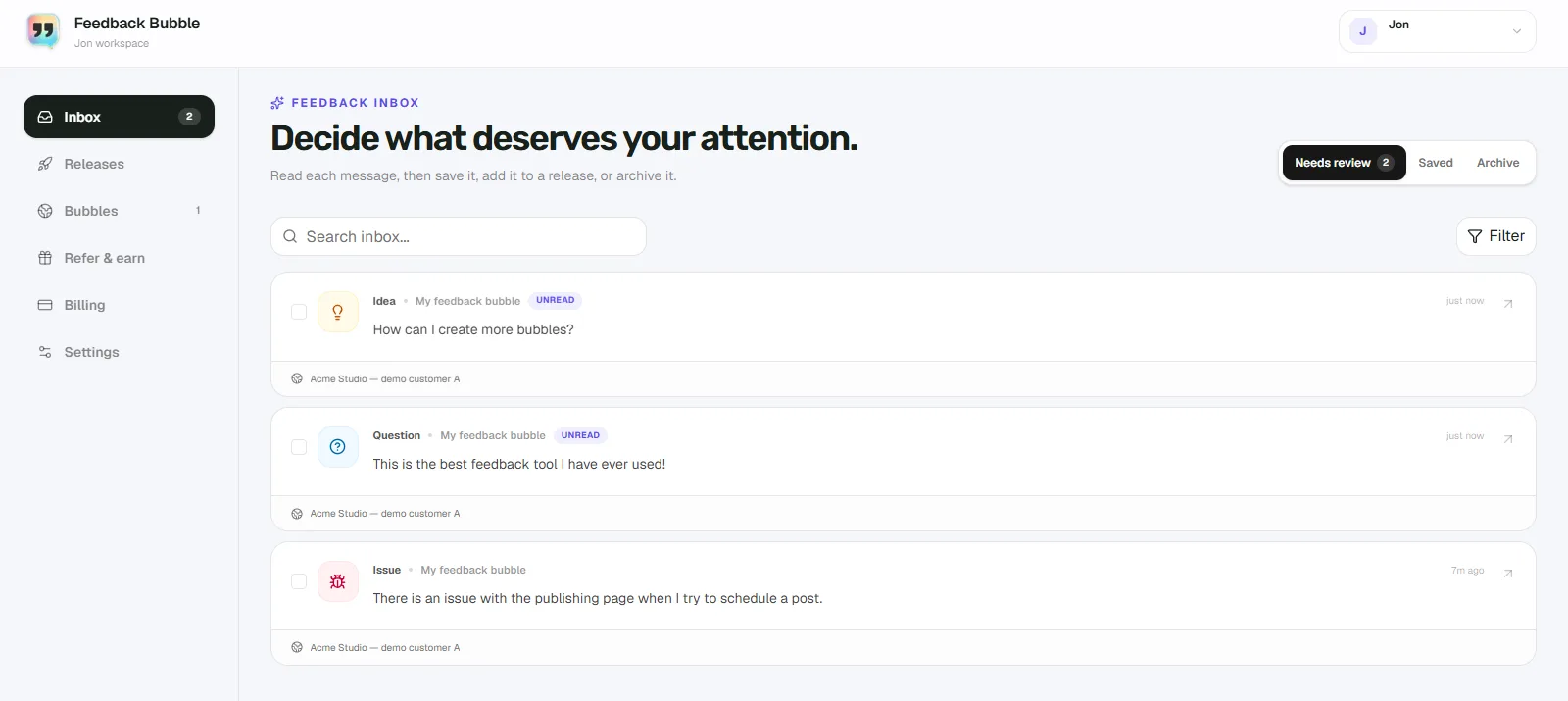
Feedback Bubble is one option for collecting this kind of on-page feedback without adopting a larger survey or support platform. Add its small script to your website, then visitors can send an Issue, Idea or Question without leaving the page. The inbox includes the message and its page context, with available device details to help you investigate.
You can optionally let visitors request a reply and provide an email address. An email address is not required for an ordinary submission. In the dashboard, organise messages under Needs review, Saved or Archive. If you decide to act on related feedback, connect it to a planned change and move that work through Planned, Building and Shipped.
The widget can be customised in its editor, and those saved design and wording changes use the existing site key. You do not normally need to paste the installation script again after making them. For installation steps, see the Feedback Bubble installation guide.
Keep the limits of lightweight feedback in mind
A short message is convenient, but it may not tell you how often a problem occurs or why a user made a particular choice. If you need to explore a user’s reasoning, ask for a follow-up conversation or interview. If you need to understand broader patterns of product use, use appropriate analytics. An on-page feedback widget can complement those methods, not replace them.
Keep prompts focused, too. If every page opens with a broad “Tell us what you think” request, the feedback may be vague. Make the feedback option easy to find, then use a more specific prompt only where it helps a visitor describe a particular task or problem.
Start by adding a simple feedback route to the page where users are most likely to encounter questions or problems. Review what comes in before choosing what to build.