 Feedback Bubble
Published 4 October 2026 · By Jonathan Jones
How to Triage Customer Bug Reports in Indie SaaS
A practical workflow for assessing customer bug reports, deciding what to investigate, tracking fixes through to Shipped and following up with customers.
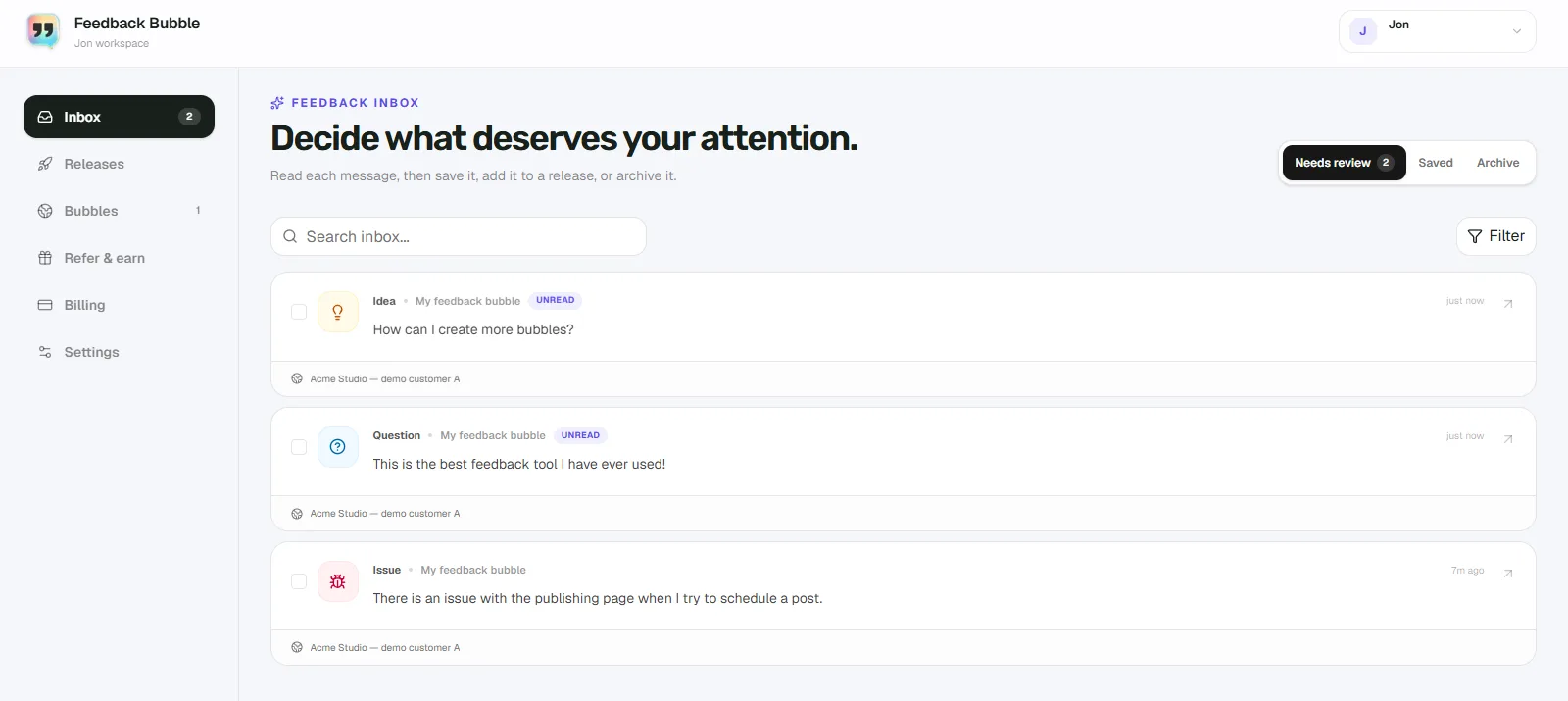
When a customer reports a bug, first read their message alongside the page and device context, then try to reproduce the problem and judge its impact. Keep the report in Needs review while you decide what to do; save or archive it if no work is planned, or connect it with related reports under a planned change. Track that change through Planned, Building and Shipped. If customers requested a reply and supplied an email address, review a follow-up before sending it after the fix ships.
Start with the report and its context
Read what the customer actually wrote before deciding how urgent the issue is. Check where they submitted it, when it arrived and, if available, the browser, operating system, device and viewport details. That context can point you towards a particular page or setup and save basic follow-up questions.
Context is a starting point, not a reproduction. It does not tell you every action the customer took or prove what caused the failure. Feedback Bubble records page and technical context, but it does not capture sessions, screenshots, console logs or network requests. If the message is too brief to investigate, ask for the missing detail through an appropriate reply channel. For more on the information that makes a report actionable, see what to include in a SaaS bug report.
Decide what needs attention
Check whether you can reproduce the issue and what the customer could not do as a result. A failure that blocks a core task, risks data or affects payment may warrant faster investigation than a cosmetic issue with a workaround. These are practical judgement calls, not an automatic priority score. Consider the evidence you have, the likely impact and what you can verify.
Then choose a next step for the report:
Keep it in Needs review while you investigate or decide whether to commit to a fix.
Move it to Saved if it is useful to keep but you are not planning work on it yet.
Move it to Archive if it no longer needs attention, such as when it is a duplicate or you have decided not to act on it.
Connect it to planned product work when you have decided to investigate or make a change.
Several reports can support one planned change, but their number alone does not decide what to build. Check whether they describe the same underlying problem, who is affected and whether the change fits your product priorities. Keep the original customer wording intact; give the planned change a clear, outcome-focused name instead.
A hypothetical example: a failed CSV export
Suppose a customer reports: “Exporting this month’s invoices gives me a blank file.” The inbox shows the report came from the invoice page, along with the submission time and available browser and viewport details. That narrows down where to start, but you still need to try the export and establish what is happening.
If you reproduce the failure and decide to fix it, check whether any related reports describe the same export problem. You might connect those messages to one planned change called “Fix blank invoice exports”. If you cannot reproduce it, keep the report in Needs review while you gather the details needed to investigate. This example is hypothetical; it does not describe a real customer report or product outcome.
Track an accepted fix through to Shipped
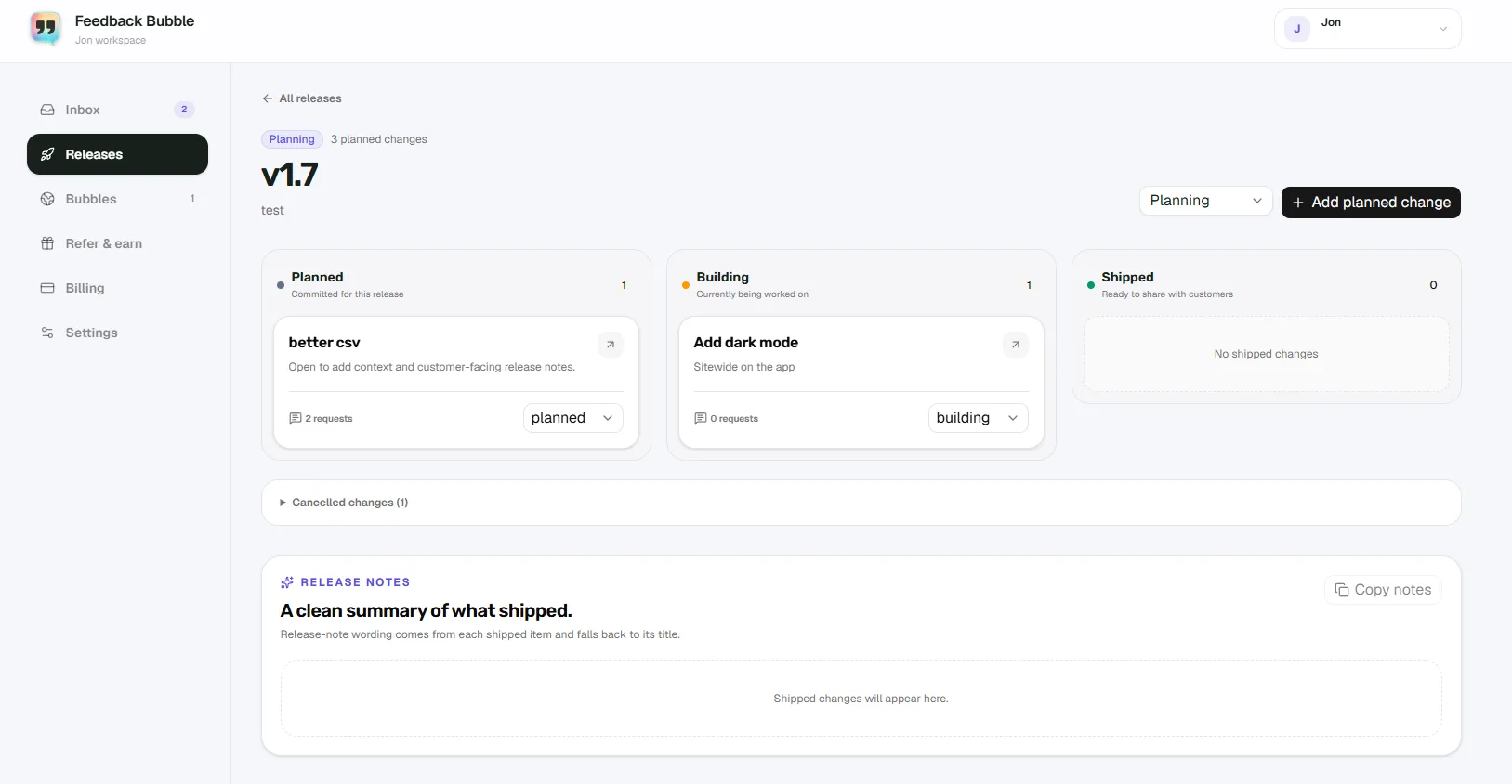
In Feedback Bubble, create a release from Dashboard > Releases > Create release. From Needs review or Saved, select the related messages and choose Plan change. Add them to a new planned change or an existing one in the release. You can add an internal description and customer-facing release-note wording to the change.
Move the planned change through Planned, Building and Shipped as the work progresses. If you decide not to proceed, mark it Cancelled. A release cannot be marked Released while it still contains changes in Planned or Building. The workflow gives you a place to track a decision and its delivery; it does not make the prioritisation decision for you.
Feedback Bubble is designed for on-page Issues, Ideas and Questions with page and technical context attached. Its feature overview describes how the widget and inbox fit together. Treat a customer report as evidence to investigate, not a promise that the suggested fix will be built.
Let the customer know when the change ships
A customer can request a reply and provide an email address if reply requests are enabled for the bubble. After the planned change is Shipped, open it and select Close the loop. Review and edit the email subject and message, then confirm the batch. Feedback Bubble deduplicates recipient addresses and excludes customers who have already received that shipped announcement.
This is a reviewed follow-up, not an automatic reply. Check that the message describes what actually shipped and avoid implying that every reported issue has been fixed if the change addressed only part of it. For more guidance, see how to close the customer feedback loop.
A small workflow you can repeat
Read the message with its page and device context, then try to reproduce the issue.
Assess the impact and decide whether you need more information, should keep the report for later, archive it or plan work.
Group related messages under one outcome-focused planned change when you commit to a fix.
Track the change through Planned, Building and Shipped.
Review a close-the-loop message for eligible reply-requesters and send it when the change ships.
If bug reports are arriving through scattered channels, Feedback Bubble can collect on-page messages with their page and technical context in one inbox. See how the feedback workflow works.